Have you ever tried to run a NextJS web app with a shared-hosting account? It is not a straightforward operation! In my experience with Namecheap shared-hosting accounts, it is not a good idea either. Shared hosting accounts don’t offer enough resources for NextJS apps, which suffocates the web app 😮💨. You will find it too slow, so avoid doing so if possible. Yet, sometimes staging servers are okay to be slow and we need to do the implementation anyway 😅. If this is your case, or you don’t have other choices for now, then stay with me!
We will cover
- Best practices to avoid limited resources issues
- Step-by-step guide to setup the NodeJS app
- NextJS app config file initiation
Build the app! 👷
We will work on NextJS 14.2.3 (I have also tried this on NextJS 13.x and it worked well). Assuming our NextJS project is ready to be deployed, make sure to build the project locally. Shared-hosting servers don’t have the resources to build a web project (or at least Namecheap shared hosting doesn’t). To build the project, issue:
npm run buildOr use yarn build if preferable, but make sure to build the project!
Clean the app 🧼
Usually, small to medium apps size about 800MB, which is huge! To avoid uploading this huge size to the server, we can clean the app locally by removing some folders. Before doing that, I suggest keeping a copy of the original project to avoid losing development files in case you decide to continue working on the project later.
Now in the copy folder, you can:
- Remove the
node_modulesfolder (we can install it later on the server) - Remove all contents of
.next/cache/folder; those are temporary data used during building, but they can be huge, so make sure to remove them. If you cannot see the.nextfolder, try showing hidden files (Cmd + Shift + .on Mac) - Remove git data; make sure to remove the
.gitfolder (don’t do this in your original working project folder) - Actually, after building the project, you can remove all page code folders since their code is already generated in the
.nextfolder, but their size usually is not that big, so it is okay to keep them. - Don’t remove the
publicor assets folder ⚠️
After cleaning the code, compressing the cleaned code should result in about a 2MB to 5MB zip file, which we can upload easily.
Setup NodeJS app in cPanel 🤓
Usually, the NodeJS app appears in the Software section of cPanel:
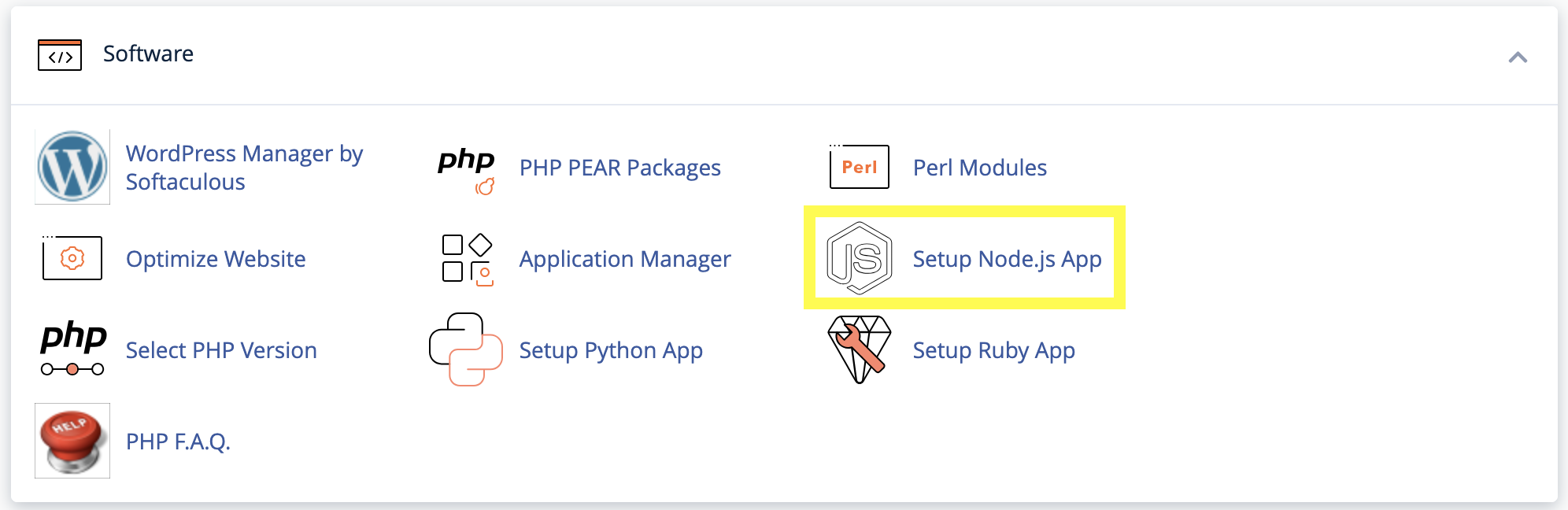
If you cannot find it there, make sure to ask your hosting support to point it out or install it if available.
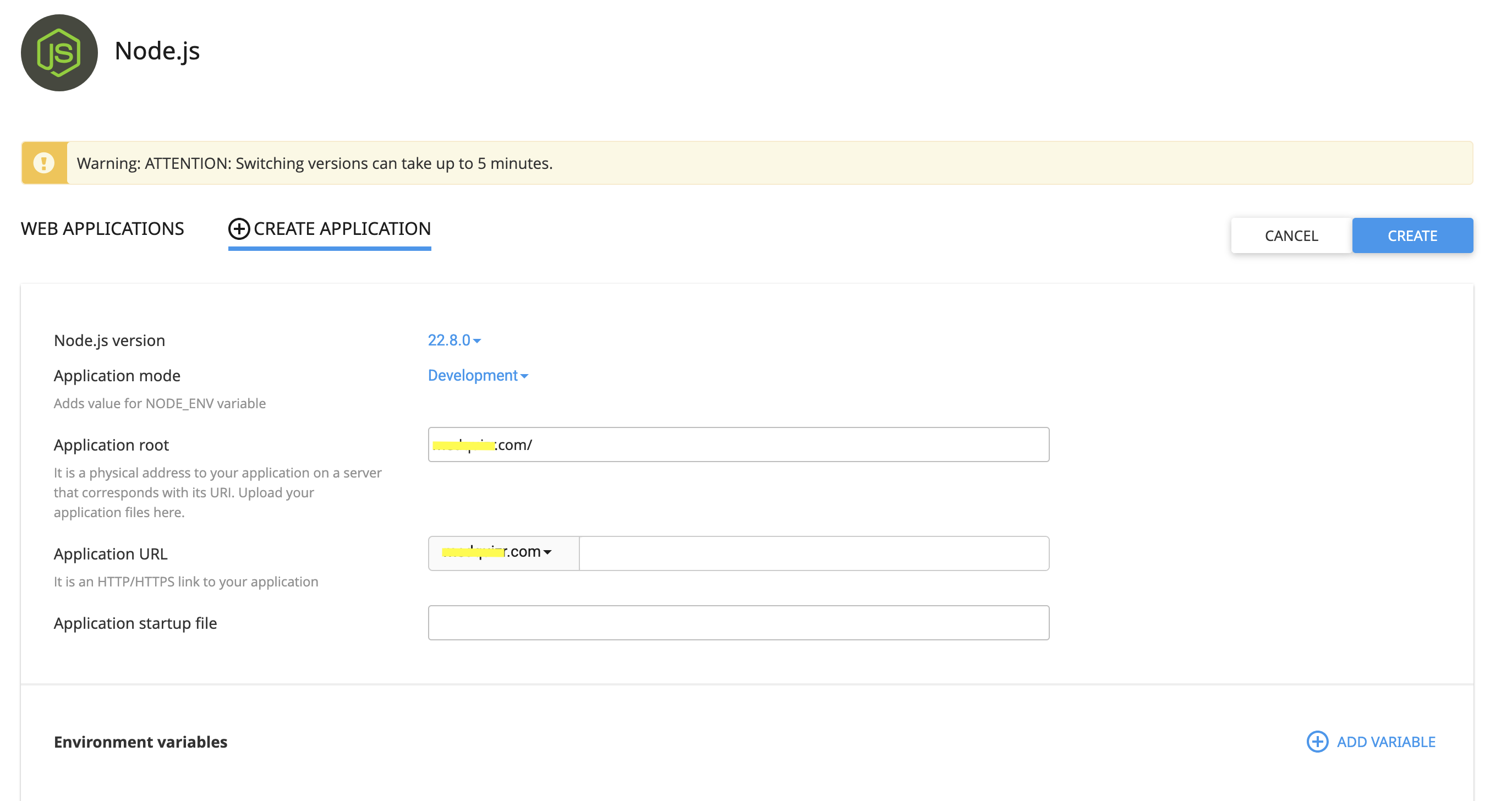
After opening it, we can create a web app by clicking CREATE APPLICATION:

After selecting the domain or subdomain you want to attach the web app with, and the app folder, make sure to select the latest Node.js version and hit the CREATE button:
After creating the NodeJS app, opening the app URL should show a message that an app was created successfully:
It works!

NodeJS 22.8.0
And we should be able to find .htaccess and app.js files in the site folder:

All other folders are not required for our NextJS app and can be removed safely.
Uploading app files
After cleaning unnecessary files, the easiest way to upload app files is by using the File Manager:

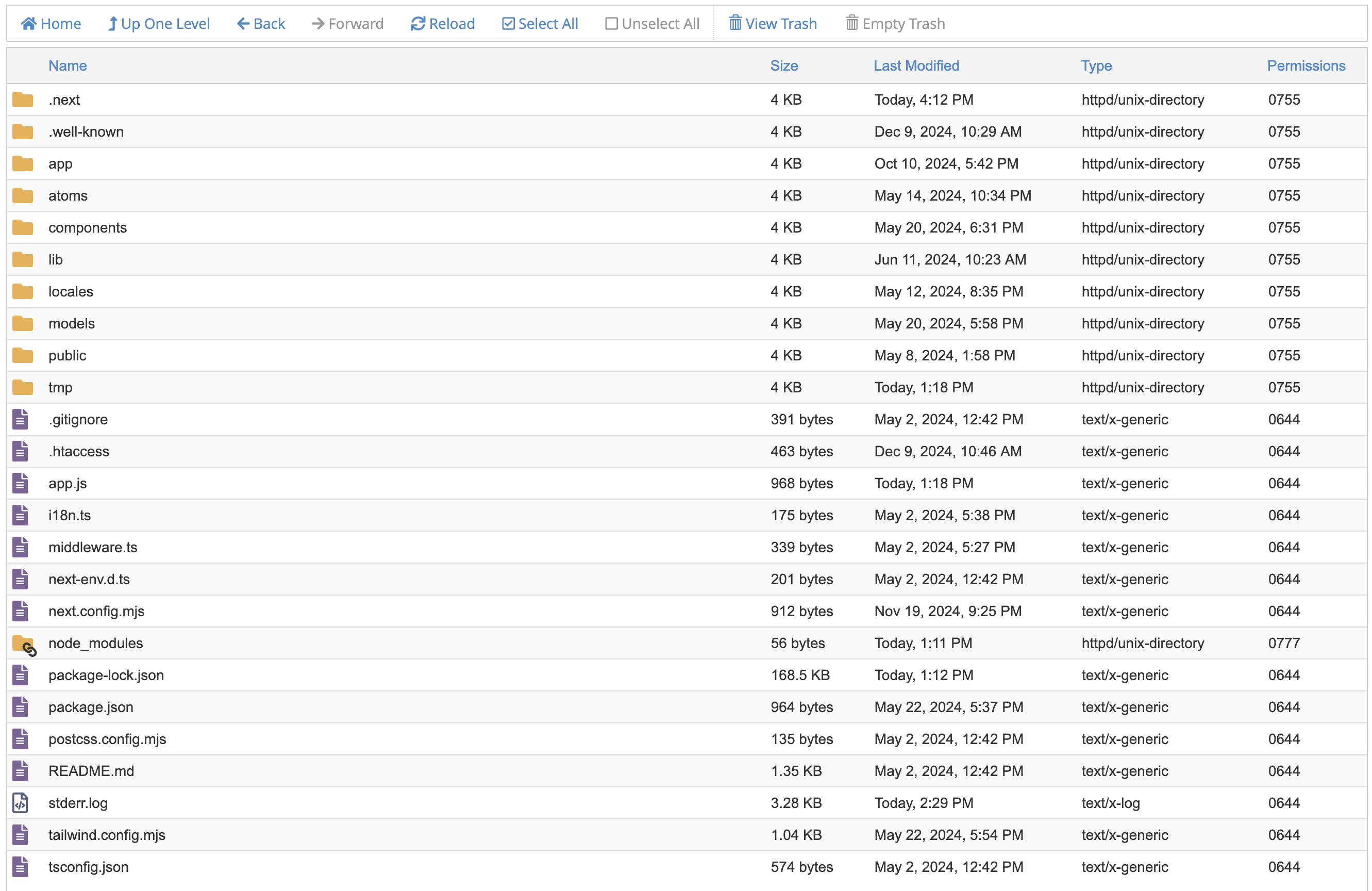
After uploading the zip file, we can unzip it by right-clicking on it and choosing the Extract option, then move the extracted files so that the Next.js config file is on the same level as app.js:
Install app packages
It is time to install packages. We can either install them from the cPanel UI by opening the NodeJS apps, choosing to edit our app, and hitting the “Run NPM install” button:


It could take some time; normally a green toast will appear on the top-right edge of the browser informing you of the operation’s success.
Alternatively, we can install packages using the SSH terminal or the online terminal in cPanel. Just make sure to enter the provided virtual environment command first:

Then simply run:
npm installWhichever way you choose, make sure NOT to issue npm run dev on the server, since it may overwrite the built files. If you have already done so, you may have to upload the locally built files again.
Update app.js file
We are almost done! Just update the app.js file contents with custom server handling for Next.js:
const { createServer } = require('http')
const { parse } = require('url')
const next = require('next')

const dev = process.env.NODE_ENV !== 'production'
const hostname = 'localhost'
const port = process.env.PORT || 3000
const app = next({ dev, hostname, port })
const handle = app.getRequestHandler()

app.prepare().then(() => {
  createServer(async (req, res) => {
    try {
      const parsedUrl = parse(req.url, true)
      const { pathname, query } = parsedUrl

      if (pathname === '/a') {
        await app.render(req, res, '/a', query)
      } else if (pathname === '/b') {
        await app.render(req, res, '/b', query)
      } else {
        await handle(req, res, parsedUrl)
      }
    } catch (err) {
      console.error('Error occurred handling', req.url, err)
      res.statusCode = 500
      res.end('internal server error')
    }
  }).listen(port, (err) => {
    if (err) throw err
    console.log(`> Ready on http://${hostname}:${port}`)
  })
})
We are done! You may need to reload the NodeJS app in cPanel:

Are you interested in more cPanel-related topics? Stay tuned! 😎
 Alkentar Research
Architecting Resilient Multi-Agent AI Systems for Production
Why most enterprise AI demos break down under real-world constraints, and how to build deterministic, anti-hallucination agent architectures.

MLOps for LLM: A Case Study on Dresscode
A comprehensive walk-through of the 7-step production MLOps pipeline for multimodal LLM systems, featuring an architectural case study on Dresscode.
Vous concevez une solution IA ou un pipeline LLM en production ?
Nos architectes principaux aident les entreprises à concevoir des systèmes IA déterministes, résilients et maîtrisés en coûts.
Réserver un Appel Découverte